With “Calculating Price from Attributes Plugin” the store owner can define complex formula using product’s attributes price values, product’s attributes weight values and static values to dynamically calculate the price of the product depending on the product’s attributes chosen by the customer. The following is a quick guide for the plugin and at the end is the link for the DEMO VERSION.
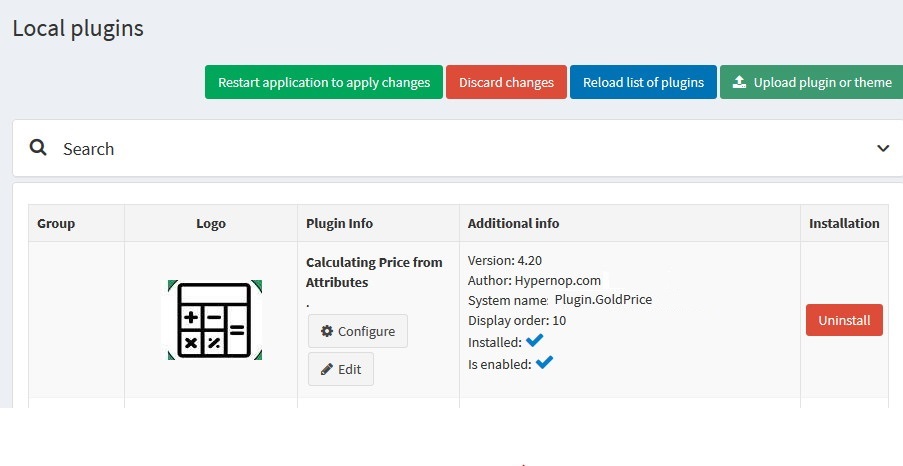
By enabling the plugin from the “Widgets” menu in the admin panel (Admin Panel > Configuration > Widgets > InstsagramNop), if a formula has been defined by the store owner for a product, the mentioned product’s price would be calculated by the formula and if a product does not have a defined formula, then the product’s price would be determined by the store’s default methods.
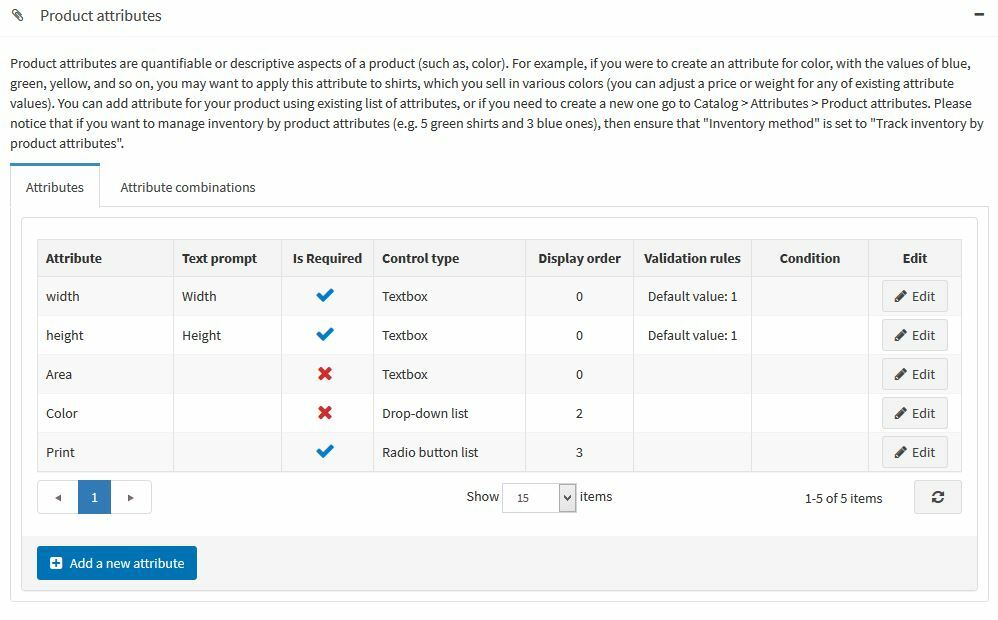
After enabling the plugin, the store owner defines and relate different attributes with different values to the product.
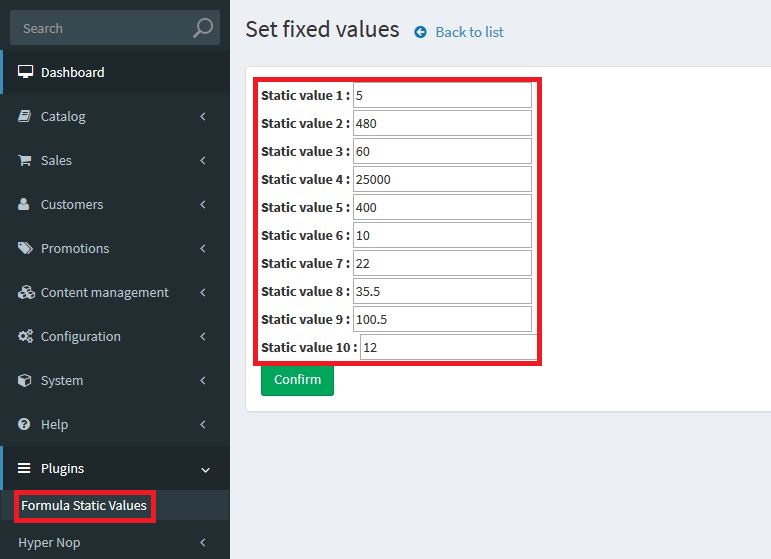
The store owner can define the “static values” from admin panel > plugins > Formula Static Values. Store owner can use these static values in their formula (only 10 static values can be defined, from s1 to s10).
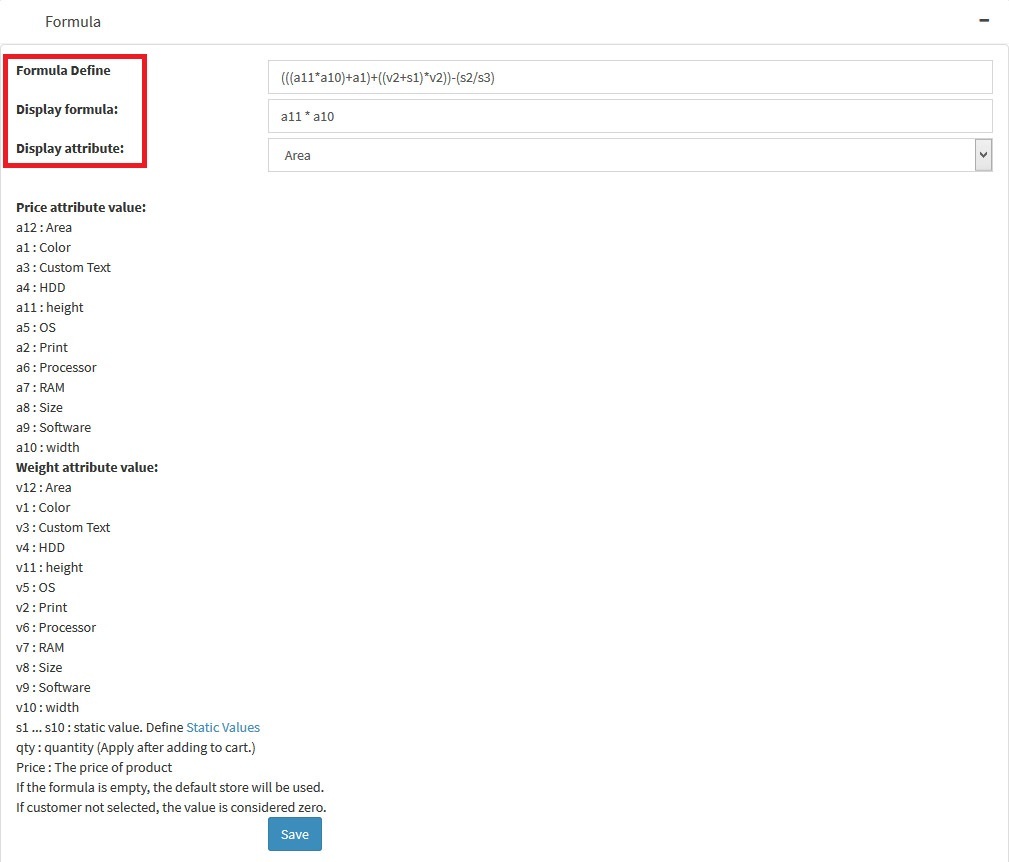
After defining attributes and static values, the store owner can define the formula by using the “Formula” tab in the product’s edit detail page. A list of available variables is shown under the formula field. The store owner can define the formula using the mathematical operators (+, -, *, /, %) and “IF” statement using the “IF((Condition), (True Part), (False Part))”structures. With “IF” statements the store owner can make complex formulas like IF((a11>a12), (a11*10), (a12-2)).
As a result, the product’s price value would be dynamically calculated by the defined formula depending on the customer’s attribute choosing.
The store owner also has the ability to define a “Display Formula” for each product as well. With the display formula, the store owner would be able to display the result of the calculation of the defined formula in the display formula field as a different attribute’s value. For example, if the store owner would want to show the “Square Meter” of the entered “Height” and “Width” fields as the “Area” attribute, they only would need to add the “Area” attribute to the product’s attributes and then choose this attribute as the “Display Attribute”. After that, the store owner would define the “a11*a10” (height * width) as the display formula. The result would be shown as a display only field for the area attribute which it’s value would change according to the customer’s input for the height and width attributes.
Please note that the display attribute’s final value would be shown in the “Cart” and the “Order Details” and if the store owner would not desire to use this function, they could simply not chose any attribute for the “Display Attribute” and leave the “Display Formula” field empty. The “Display Attribute” value would be calculated after the main formula.
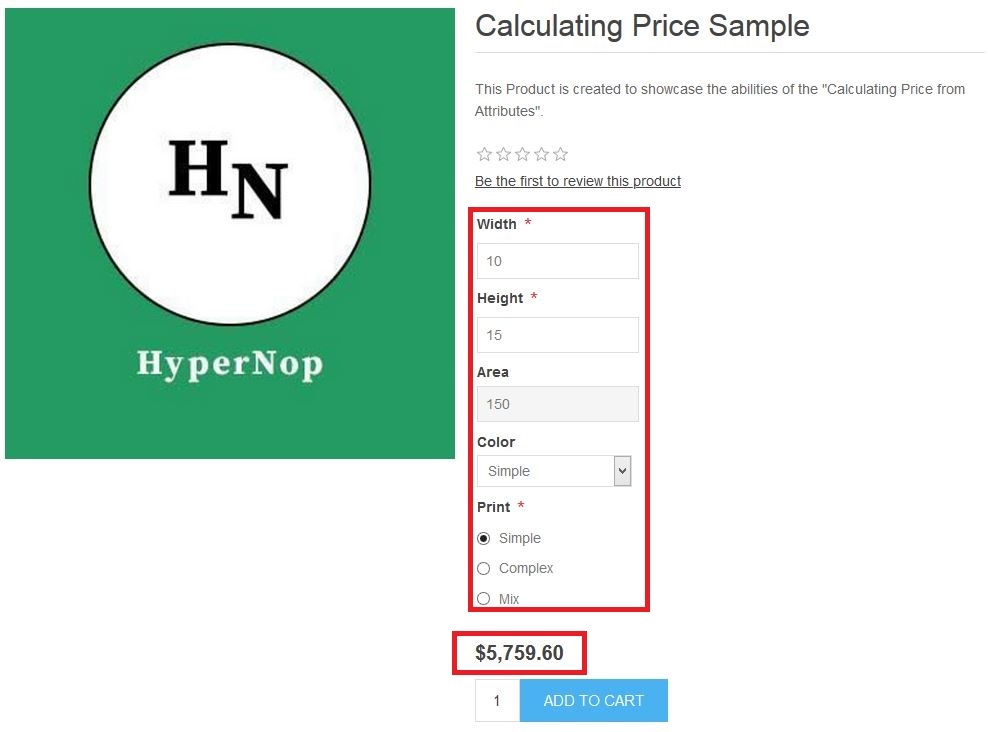
The fowling is a list of supported operators and functions and examples as to how to use them in the formulas.
| Operator | Usage | Example |
| + | Addition | a11+a12 |
| - | Subtraction | a11-a12 |
| * | Multiplication | a11*a12 |
| / | Division | a11/a12 |
| % | Modulus | a11%a12 |
| < | Lesser than | IF ((a11<a12), a1, a2) |
| > | Gtreater than | IF ((a11<a12), a1, a2) |
| = | Equal | IF ((a11=a12), a1, a2) |
| <> | Not equal | IF ((a11<>a12), a1, a2) |
| <= | Lesser than OR equal | IF ((a11<=a12), a1, a2) |
| >= | Grater than OR equal | IF ((a11>=a12), a1, a2) |
| AND | Returnes true if both statements are true | IF (((a11>10) AND (a12<5)), a1, a2) |
| OR | Returns true if one of the statements is true | IF (((a11>10) OR (a12<5)), a1, a2) |
| NOT | Returnes true if statement is flase | IF ((NOT (a11 = 10)), a1, a2) |
| IN | Variable is in the values | IF (((a11) IN (10, 14, 20)), a1, a2) |
| LIKE | Variable matches a pattern | IF(((Convert(a11, 'System.String')) LIKE ('1%')), a4, a7) |
| IS [NOT] NULL | - | IF(((a11) IS [NOT] NULL), a1, a2) |
| Function | Usage | Example |
| IF | IF statment | IF((a11), a1, a2) |
| CONVERT | Converts a variable type to another | Convert(total, 'System.Int32') |
The store owner could also use the “Price” and the “qty” in their formulas. The “Price” refers to the product's default price value and the “qty” refers to the product’s quantity which the customer would decide on the product’s detail page while they are adding the product to their cart.
Please note that the “qty” would only be applied to the formula and final price of the product after the product has been added to the cart.
A demo version of this plugin is available. Please use the information below to enter the admin panel and review the formula settings.
Admin Username: admin@yourstore.com
Admin Password: 123


پشتیبانی تخصصی ناپ کامرس به شما این اطمینان را میدهد که فروشگاهتان همواره بروز، امن و پایدار است و تیم فنی در کمترین زمان ممکن برای رفع مشکلات و ارائه راهکارهای بهینه در کنار شما خواهد بود.

طراحی افزونه در ناپ کامرس مبتنی بر پیروی از استانداردهای کدنویسی این سیستم است که امکان توسعه پذیری و اضافه کردن قابلیتهای سفارشی را به فروشگاه فراهم میکند.